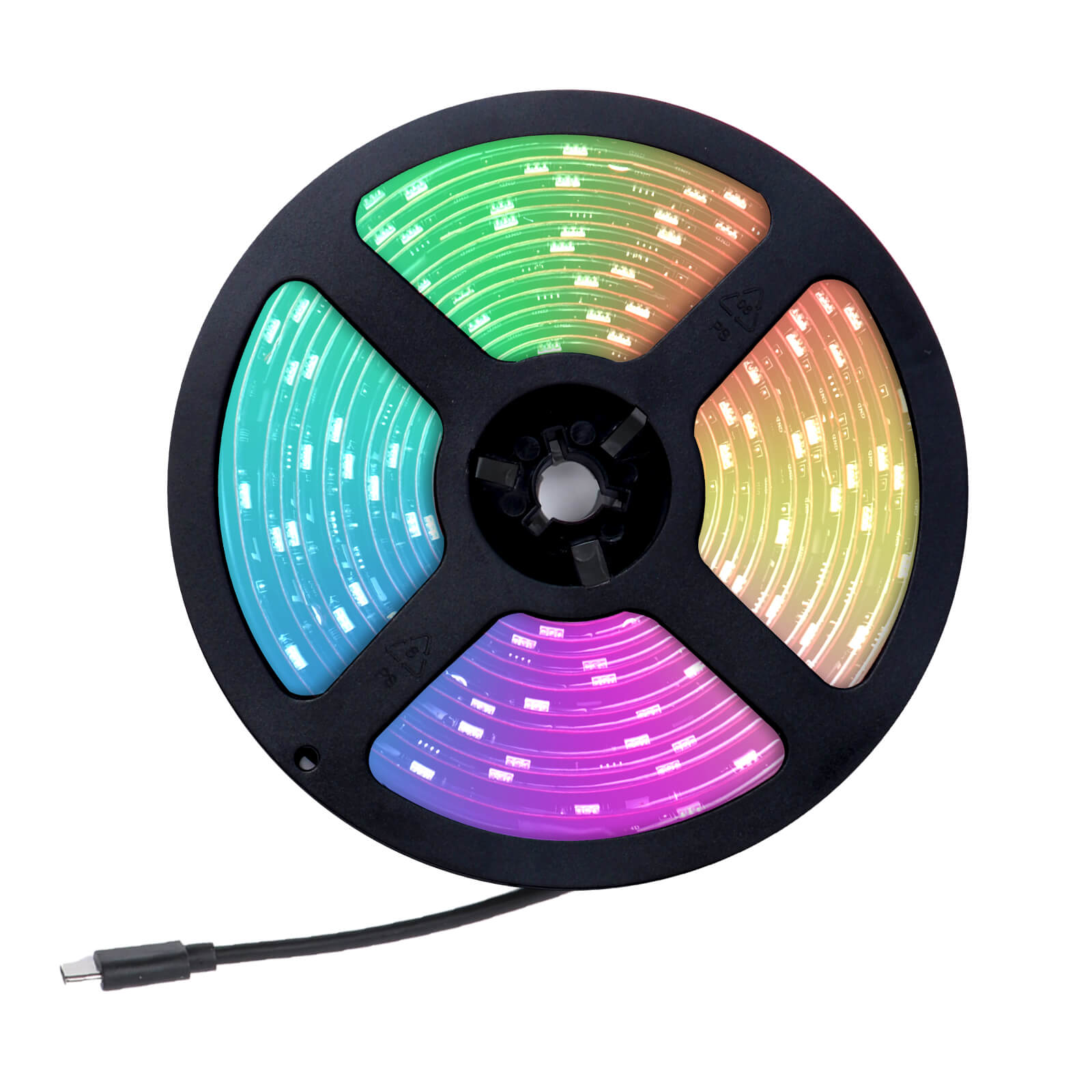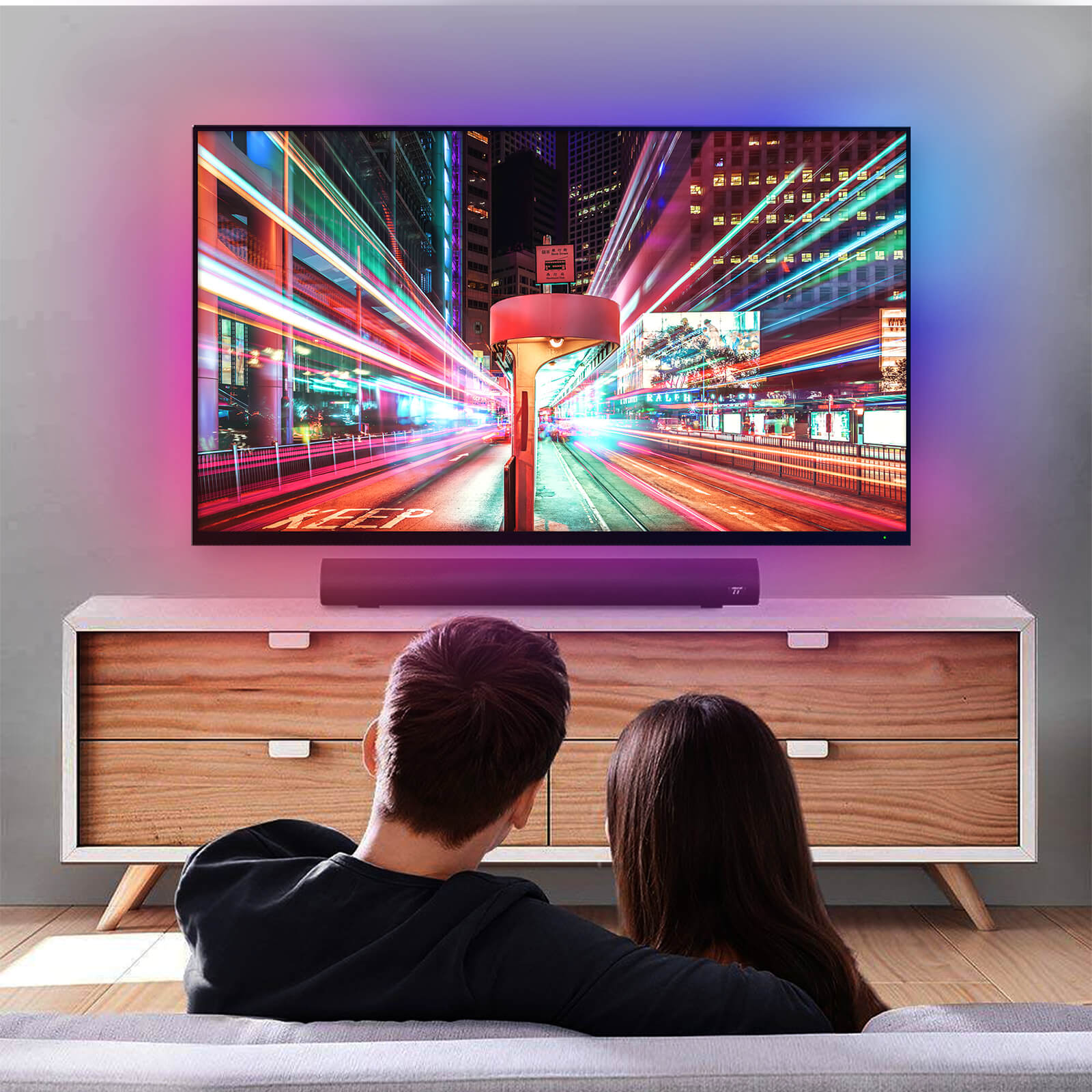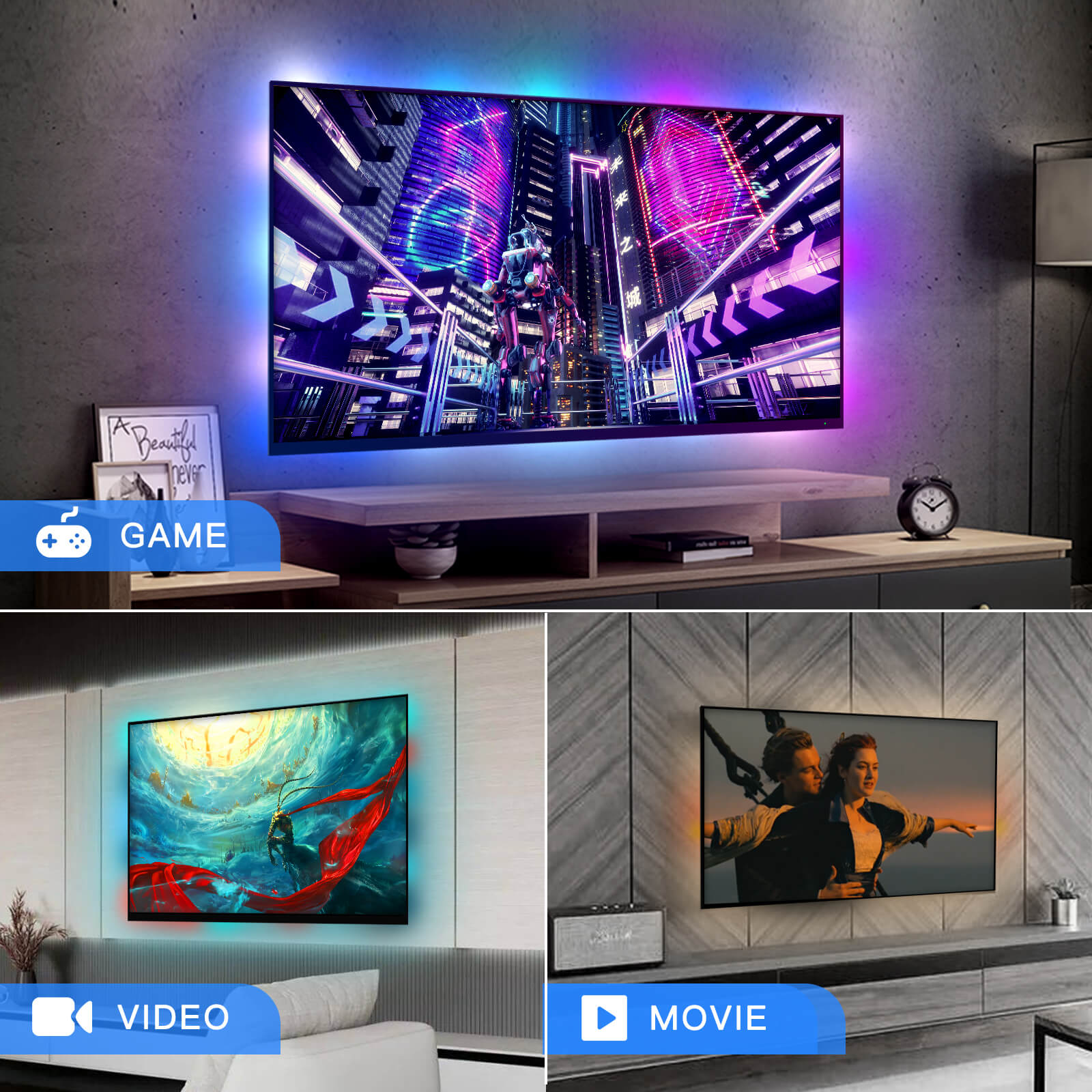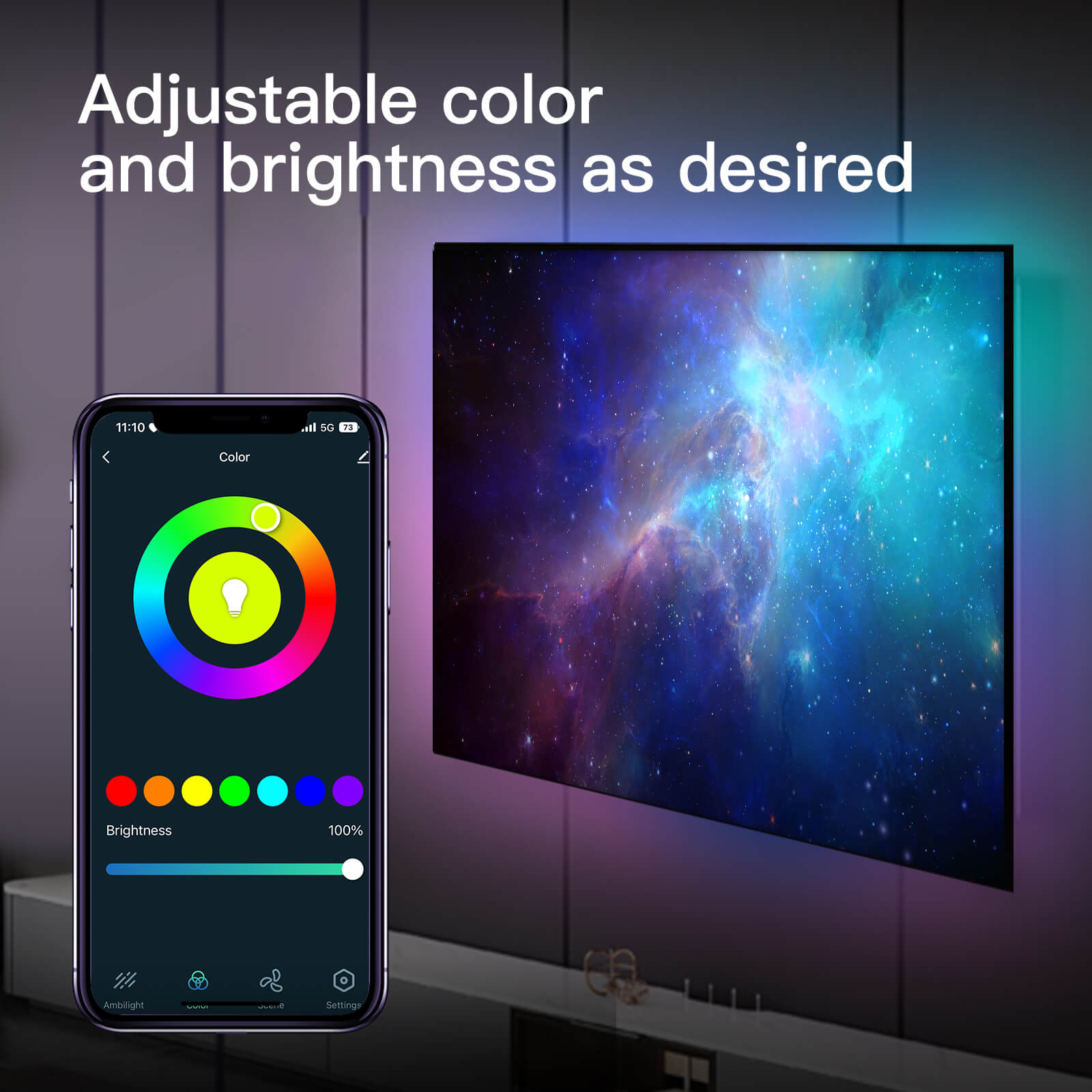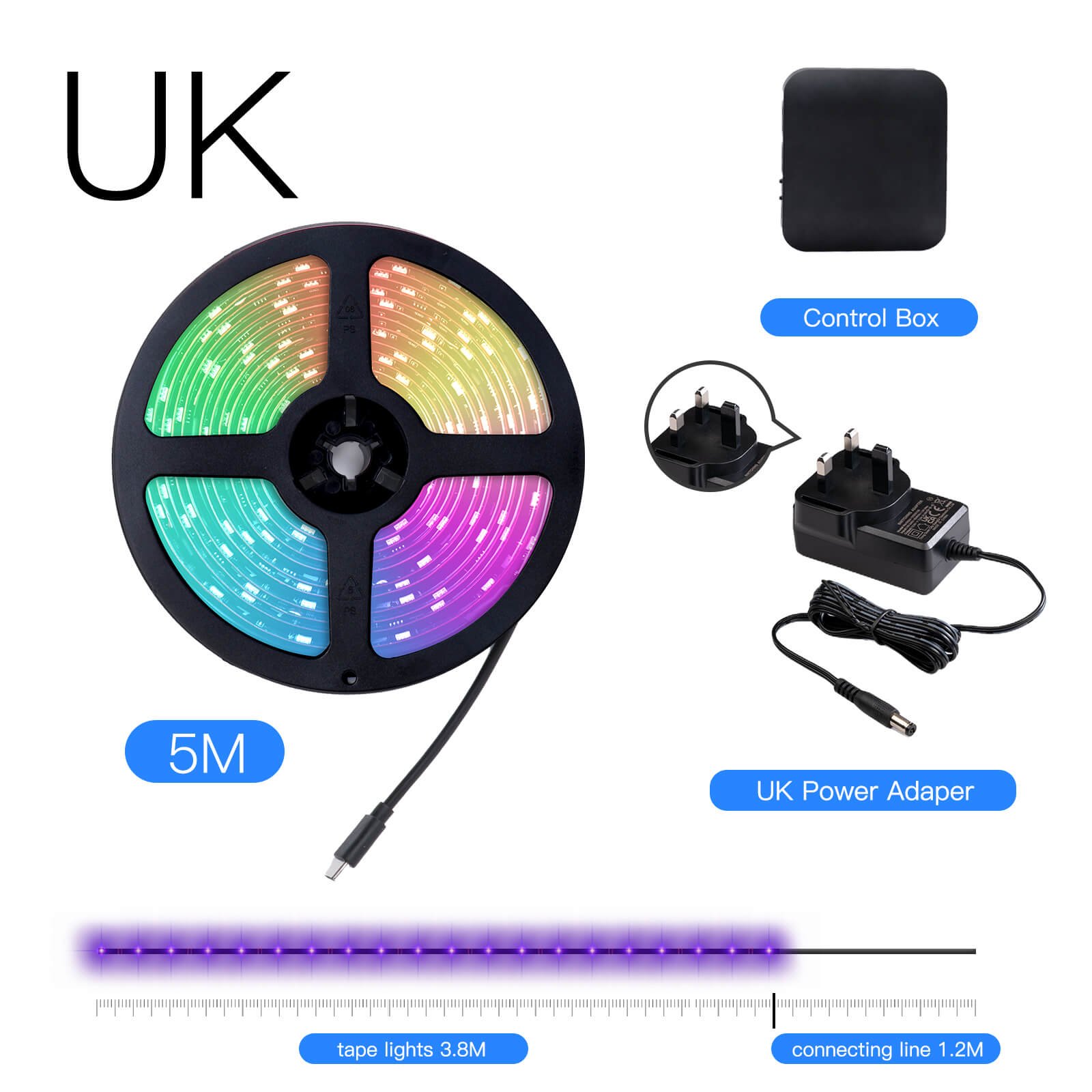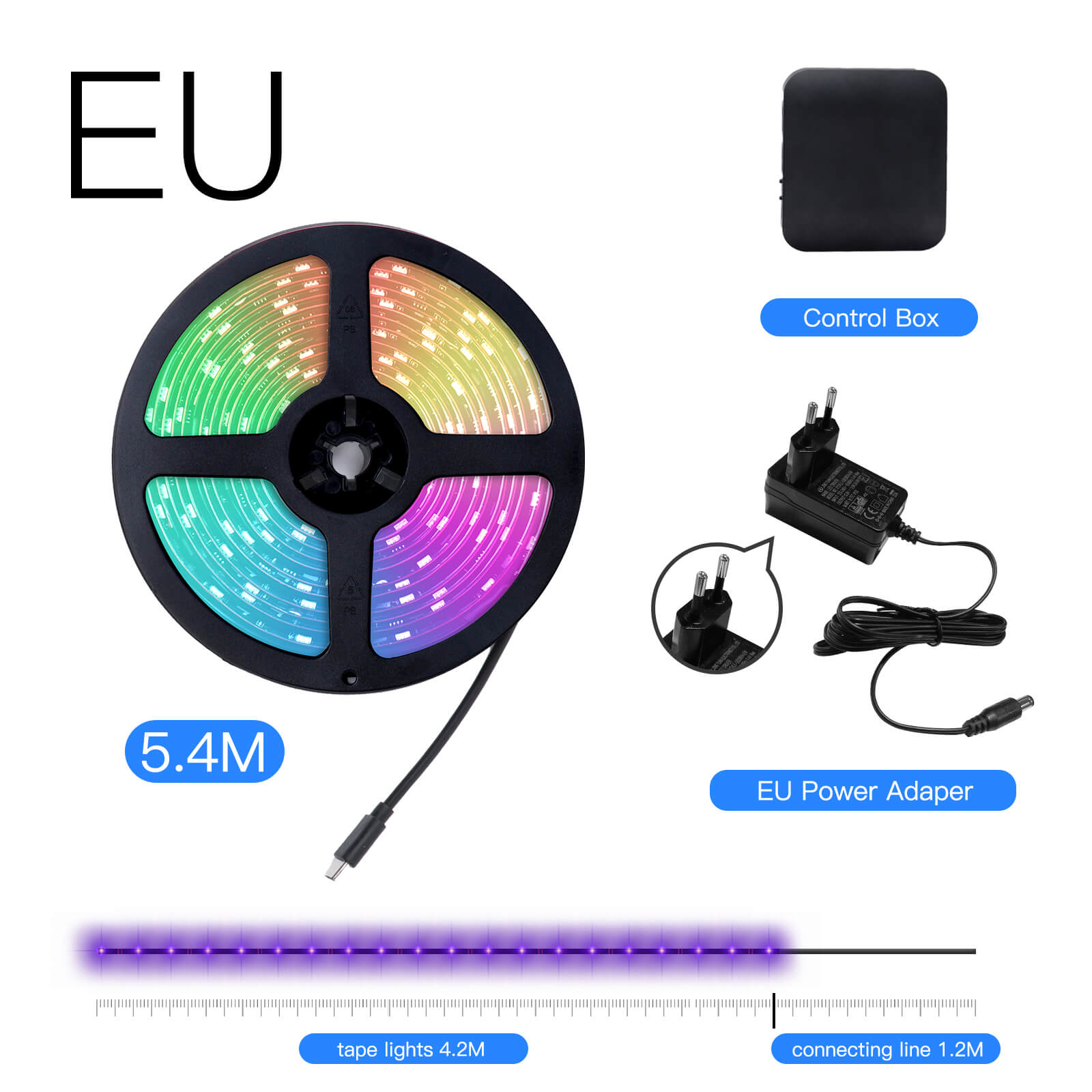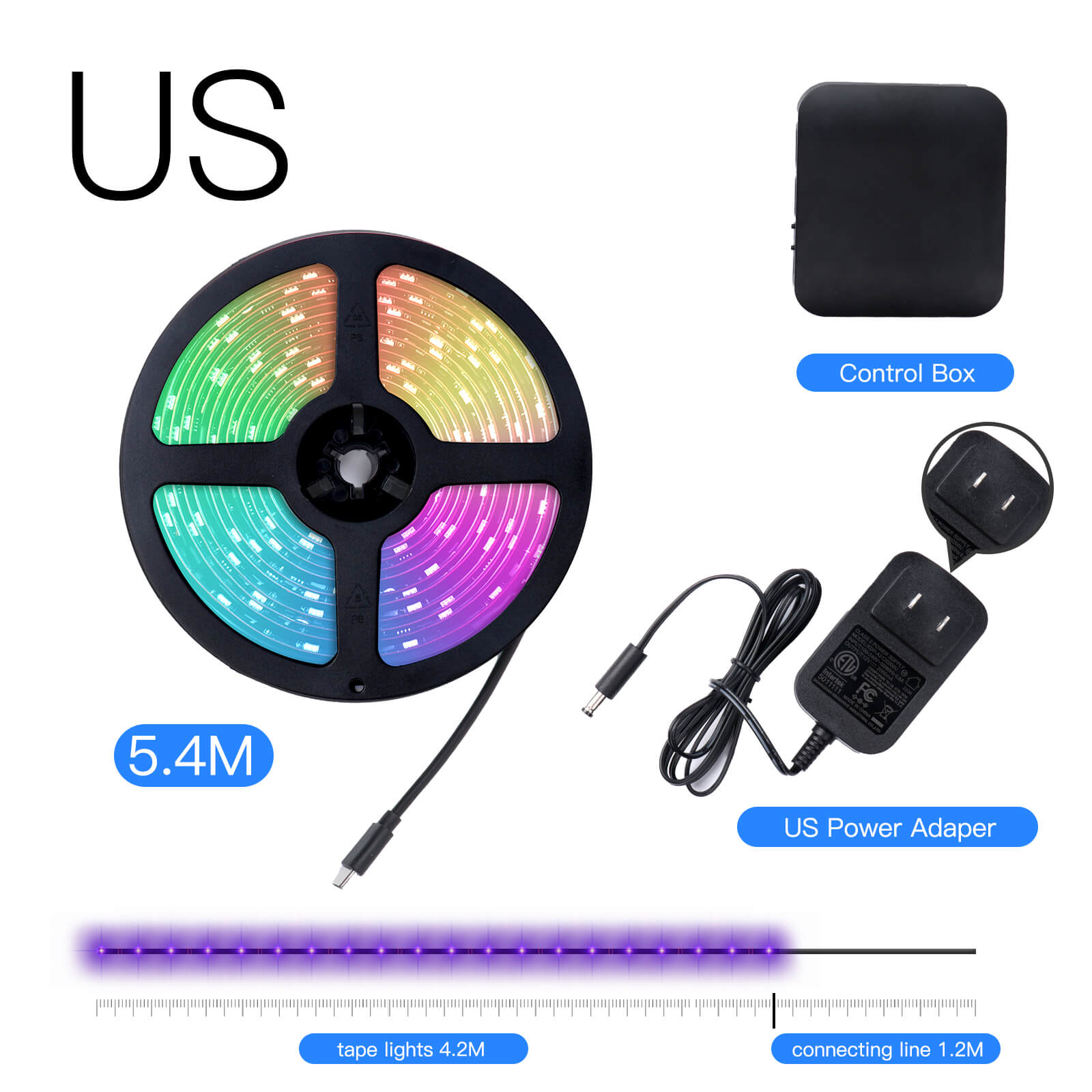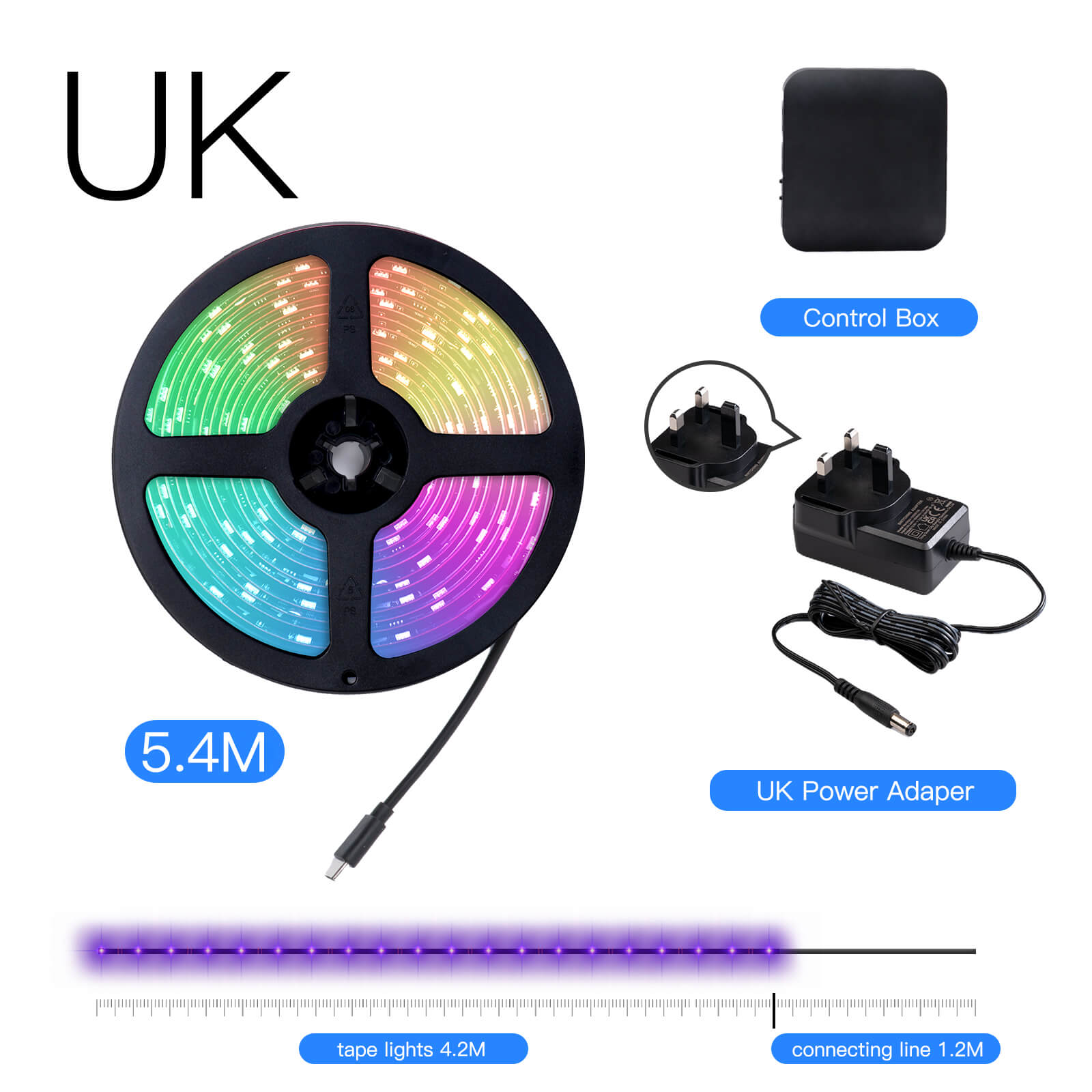
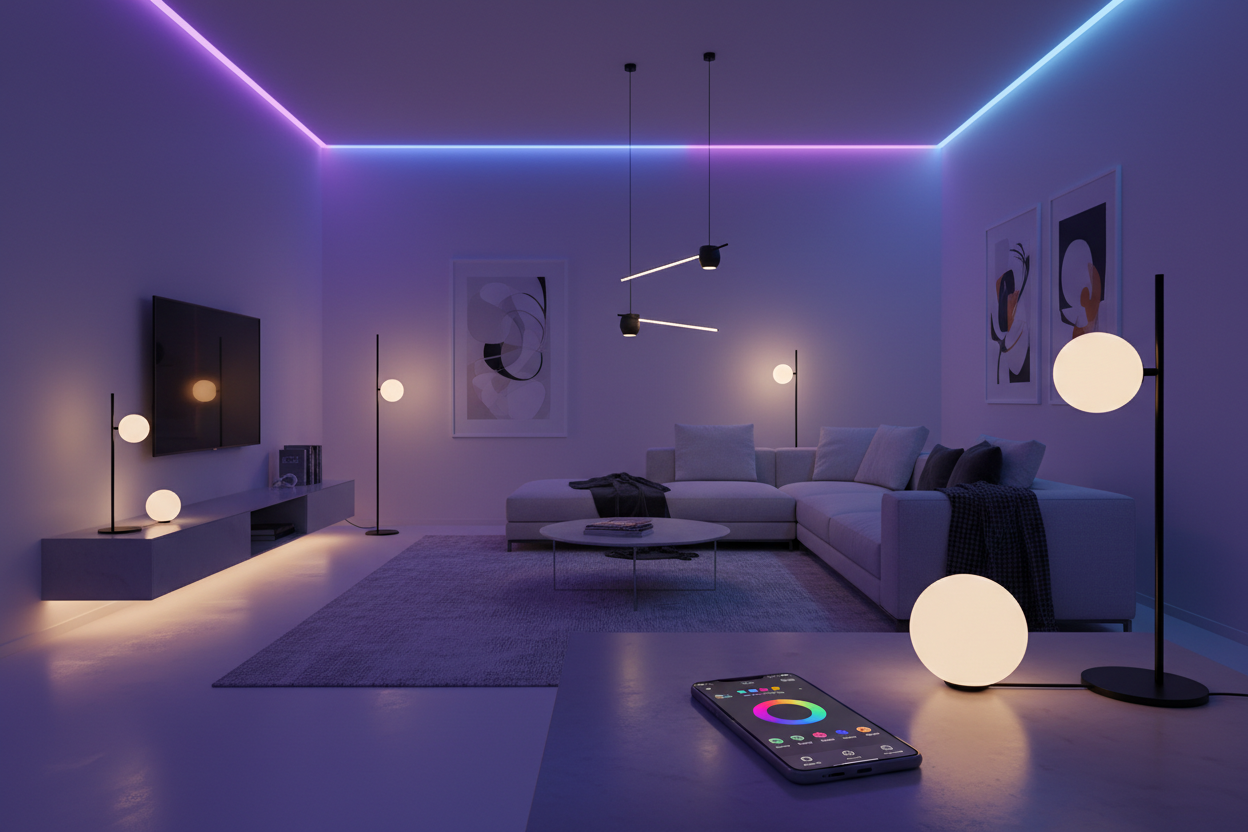
You can set up smart WiFi ambient lighting in your home by choosing the right devices, connecting them to your WiFi, and using an app for control. Smart lighting gives you convenience, saves energy, and helps set the mood in any room. Many people already enjoy these benefits—about 13% of U.S. homes with internet have smart light bulbs. Costs fit different budgets, with bulbs starting at $10 and full systems reaching $3,000. Most homeowners finish setup in a day or two, so you can handle it yourself.
|
Home Size (Linear Feet) |
Estimated Installation Time |
|---|---|
|
200 or less |
1 day |
|
200-300 |
About 2 days |
Key Takeaways
-
Think about what you do in each room before picking lights. Pick the right brightness and color to set the mood you want.
-
Make sure your WiFi is strong in every part of your house. Good WiFi is needed for smart lights to work well.
-
Pick smart lighting that works with your current fixtures. Check if the lights match your smart home system.
-
Read and follow the setup steps from the maker. This helps you avoid mistakes and makes setup easy.
-
Use smart lights that save energy to spend less money. Energy Star lights can help you save even more and help the planet.
Plan Your Smart WiFi Ambient Lighting
Assess Lighting Needs and Room Layout
Before you start your smart lighting setup, take a good look at your home. Think about which rooms could benefit most from smart WiFi ambient lighting. Maybe you want cozy smart lamps in the living room or bright smart bulbs in the kitchen. Each space has its own needs.
-
Understanding lumens helps you figure out how much light each room needs. Bedrooms often need softer lights, while kitchens and workspaces need brighter ones.
-
The right color temperature changes the mood. Warm tones make a room feel relaxing. Cool tones help you focus.
-
Layered lighting works best. Use a mix of smart bulbs, smart lamps, and even smart lights in the ceiling. This gives you flexibility for different activities.
As renowned interior designer Louise Misell says: "Take the time to sit in the space and think about how you use the room. How would you like it to feel at different times of the day?"
Walk through your home and make a list of rooms and fixtures you want to upgrade. This step helps you avoid buying too many or too few smart devices.
Ensure WiFi Coverage for Smart Lights
Smart home technology depends on a strong WiFi signal. If your WiFi does not reach every corner, your smart lights might not work well. Check the signal strength in each room where you plan to install smart lighting.
-
Smart homes need enough bandwidth for all your connected devices, including smart lighting.
-
A fast and reliable internet connection keeps your smart lights working smoothly.
-
One device may not use much data, but many smart devices together can slow things down.
If you find weak spots, consider moving your router or adding a WiFi extender. This way, every smart light in your home will respond quickly and reliably.
Choose and Install Smart Lighting Devices
Select Smart Bulbs, Plugs, and Fixtures
You want your smart wifi ambient lighting to work well with your smart home. First, pick smart bulbs, smart plugs, and smart lamps that fit your current fixtures. Make sure they also work with your favorite smart home system. Some products work better with Alexa, Google Home, or Apple HomeKit. Check the table below to see which smart lights are best for compatibility and features.
|
Product Name |
Compatibility |
Pros |
Cons |
|---|---|---|---|
|
Philips Hue White and Color Ambiance Starter Kit (Generation 3) |
Alexa, Google Assistant, Siri |
Bright colors, easy app |
Needs a hub for remote use |
|
TP-Link Tapo Smart Bulb L535E |
Alexa, Google Assistant, Siri |
Simple to use, bright, tracks energy |
Can have connection issues at first |
|
Meross Smart Wi-Fi LED Bulb |
Alexa, Google Assistant, Siri |
Good price, bright colors |
No big problems found |
|
Nanoleaf Essentials Matter A19 Bulb |
Google Assistant, Siri |
Supports Matter, has good lighting |
App is confusing, sometimes loses connection |
When you look at smart lighting devices, check these important things:
|
Feature |
Description |
|---|---|
|
Types of Smart Lights |
There are smart bulbs, LED strips, and smart switches. Each one does something different. |
|
Control Options |
You can use an app or voice assistants like Alexa, Google Home, and Apple Home. |
|
Wireless Technologies |
Some use Wi-Fi, Zigbee, Thread, or Matter to connect. |
|
Compatibility |
Make sure your smart lights work with your smart home system. |
Smart bulbs work well in most rooms. Smart lamps add style and more light. Smart plugs let you control regular lamps with your phone or voice. Pick what fits your space and what you need.
Follow Manufacturer Instructions for Setup
You want your smart lighting setup to go well. Always follow the steps from the manufacturer. Most smart lights are easy to set up. Here’s what you usually do:
-
Plug in the smart plug or put in the smart bulb.
-
Connect your device to the smart plug or lamp.
-
Download the app for your smart lighting system.
-
Make an account or log in.
-
Add your device by following the app’s steps.
-
Change your settings, like naming your lights or making schedules.
You can also connect your smart lights to voice assistants. For Alexa, turn on the skill and link your account. For Google Home, add the device in the app and link your account. With Apple HomeKit, scan the code and organize your devices.
Tip: Take your time when setting up smart lighting. Planning helps you avoid mistakes like picking the wrong system or not thinking about how your lights look.
Common mistakes to avoid:
-
Waiting too long to plan lighting control
-
Picking the wrong system for your home
-
Using only wireless in big homes
-
Not thinking about how your lights look
-
Letting the wrong person install your lights
Safety is important, too. Check the table for safety tips:
|
Safety Consideration |
Description |
|---|---|
|
Neutral Wires |
Needed for most smart switches to keep power on. |
|
Load Capacity |
Stops overload and keeps equipment safe. |
|
GFCI Protection |
Needed for outdoor and wet places. |
|
Proper Wire Gauge |
Stops voltage drop outside. |
|
Code Compliance |
Keeps your home safe and covered by insurance. |
|
Professional Installation |
Lowers risks and meets safety rules. |
Use Energy-Efficient Smart Lights
Smart lighting can save you money and help the planet. LED smart bulbs use up to 75% less energy than old bulbs. Lighting uses about 15% of your home’s electricity. If you switch to energy-saving smart lights, you can cut that by 75%. Most families save about $225 each year on energy.
You might also get money back or tax credits for using energy-saving smart lighting. Look at these incentives:
|
Incentive Type |
Description |
|---|---|
|
Federal Tax Credits |
Save up to $3,200 on taxes for energy upgrades until December 31, 2025. |
|
Residential Clean Energy Credit |
Get a 30% tax credit for clean energy equipment, ending December 31, 2025. |
|
Local and Federal Rebates |
Available for LED lighting, helping lower costs and save money. |
|
LEED Certification Incentives |
Using LED lighting can help you get more rebates and incentives. |
|
Energy Star Certification |
Products must meet certain rules to get most rebates. |
Note: Energy-saving smart bulbs and smart lamps lower your bills and help you get rebates and credits. Look for Energy Star certification when you shop.
Smart wifi ambient lighting gives you control, saves energy, and makes your home feel just right. Take your time with setup and installation. Pick smart lights that fit your needs and style. Enjoy the benefits of smart lighting every day.
Configure and Customize Smart Lighting
Set Up Lighting App and Connect Devices
Your smart lights are ready to use. You need to connect them now. Download the app for your smart bulbs or smart lamps. Most brands have free apps for your phone or tablet. These apps help you control your lights easily.
Here are some apps and what they do:
|
App Name |
Key Features |
|---|---|
|
Lumary |
Lets you control all lights, use voice commands, set scenes, adjust dimmers, and automate lights. |
|
Philips Hue |
Lets you set scenes, make routines, works with Apple HomeKit, and supports many accessories. |
|
LIFX |
Lets you control bulbs directly, change colors, and does not need extra hardware. |
|
Sengled Home |
Lets you set schedules, check energy use, and is easy to use. |
|
Kasa Smart |
Easy to set up, shows energy use, and gives reports. |
Open the app and follow the steps to add your lights. Tap “Add Device,” pick your light type, and connect to WiFi. Name each light, like “Bedroom Lamp” or “Kitchen Ceiling.” This helps you find and control them later.
Tip: Use strong passwords for your WiFi and app accounts. This keeps your smart lighting safe from hackers.
When you connect smart devices, remember these safety tips:
-
Use strong passwords and encryption for WiFi.
-
Update your smart lights and app often.
-
Protect your data with secure storage and privacy settings.
Create Scenes and Schedules for Ambient Lighting
You can make your home feel cozy or lively by setting scenes and schedules. Scenes change the mood with one tap. Schedules save energy and make life easier.
Here are some scene and schedule ideas:
|
Scene Type |
Example Configuration |
|---|---|
|
Ambience Scenes |
Relax Mode, Focus Work, Romantic Dinner |
|
Functional Scenes |
Movie Night, Cleaning Mode, Guest Welcome |
|
Security & Away Scenes |
Good Night, Away Mode, Vacation Mode |
|
Fixed Time Schedules |
Morning Warm-Up, Work Departure, Evening Return, Night Wind-Down |
|
Dynamic Schedules |
Circadian Lighting, Seasonal Exterior Lighting, Energy Optimization |
|
Conditional Schedules |
Weather-Responsive, Occupancy-Based, Energy-Aware |
Set your smart bulbs to dim for movie night or brighten for cleaning. Try a “Good Night” scene that turns off all lights except one. Use schedules to turn on lights in the morning and off at bedtime. Dynamic schedules can match your daily routine or change with the seasons.
Smart schedules help you save energy and keep your home safe:
-
Set lights to turn off when you leave a room.
-
Use dimmer settings to save energy and stay comfortable.
-
Schedule lights to turn on and off when you’re away, so it looks like someone is home.
-
Control your smart lights from anywhere if you forget to turn them off.
Note: Smart lighting schedules can lower your energy bill and help the planet. They also make your home safer.
Integrate Smart Lights with Voice Assistants
You can make smart lighting easier by connecting it to a voice assistant. Brands like Philips Hue, LIFX, Wyze, Cree, and Nanoleaf work with Alexa, Google Assistant, and Siri. This lets you control your lights with your voice.
|
Brand |
Voice Assistant Support |
|---|---|
|
Philips Hue |
Alexa, Google, HomeKit |
|
LIFX |
Alexa, Google |
|
Wyze Bulb Color |
Alexa, Google |
|
Cree Connected Max |
Alexa, Google, Siri |
|
Nanoleaf |
All major platforms |
Here’s how to link your smart lights to voice assistants:
Google Assistant Setup:
-
Open the Google Assistant app on your Android device.
-
Tap 'Turn on' to start the assistant.
-
Turn on 'Hey Google' in the settings.
-
Train the voice model for your voice.
Alexa Setup:
-
Open the Alexa app on your phone. Tap 'More,' then 'Skills & Games.'
-
Search for your light brand’s skill, like 'Philips Hue' or 'Kasa.' Tap the skill and choose 'Enable to Use.'
-
Link your accounts by signing in with your lighting app username and password.
Voice assistants make smart lighting more convenient. You can say, “Turn on the living room lights,” or “Set the mood for dinner.” You can also make custom schedules and control your smart lights from anywhere.
|
Advantage |
Description |
|---|---|
|
Convenience |
Voice-activated lighting lets you control lights hands-free. |
|
Energy Efficiency |
Smart lights can turn off when not needed, saving energy. |
|
Customizable Ambiance |
You can make different lighting scenes for activities. |
|
Increased Security |
Automated lighting can make it look like someone is home. |
|
Seamless Integration |
Works with other smart devices for a smart home. |
Block Quote: Voice control makes smart homes easier to use. With simple commands, you can control lights and other devices. This helps when your hands are busy.
Smart wifi ambient lighting gives you control, saves energy, and lets you set the mood in every room. Try different scenes and schedules to see what works best for your home. Enjoy the comfort and convenience of smart lighting every day.
Optimize and Troubleshoot Your Smart Lighting
Layer Lighting for Enhanced Ambiance
You can make your rooms feel amazing by layering different types of lights. Interior designers suggest using three layers: ambient, task, and accent lighting. Ambient lighting gives you the main glow in a room. Task lighting helps you see better when you read, cook, or work. Accent lighting adds style and highlights special spots, like artwork or shelves.
When you mix smart bulbs, strips, and sconces, you get more control over the mood. You can switch from bright and lively during the day to soft and cozy at night. Try placing lights at different heights and angles. This creates depth and makes your space look bigger and more interesting.
-
Combining several light sources balances how your room looks and works.
-
Layering lighting boosts both the beauty and the usefulness of your living spaces.
Designers often skip using just one overhead fixture. Instead, they use many types of smart lights to make your home feel warm and welcoming. You can adjust each layer with your phone or voice, so your space always matches your needs.
Tip: Use dimmers and smart zones to change the mood fast. You can set up scenes for movie night, homework, or relaxing.
Solve Common Smart Lighting Issues
Sometimes, smart wifi ambient lighting does not work as planned. You might see lights disconnect, apps freeze, or lights not respond. Don’t worry—most problems have easy fixes.
Here are some common issues and how to solve them:
|
Issue Type |
Troubleshooting Steps |
|---|---|
|
Wi-Fi Connectivity Issues |
Move your router to a central spot. Keep it away from metal and big appliances. |
|
Network Troubleshooting |
Restart your router. Check for updates and install them. |
|
Software Glitches |
Uninstall and reinstall the app. Clear the app’s cache if it gets slow. |
|
Power-Related Issues |
Make sure wires are tight and switches match your home’s voltage. |
If your smart lights still won’t connect, try these steps:
-
Make sure your router and smart device use the same network.
-
Double-check your Wi-Fi password.
-
Test if other devices connect to Wi-Fi.
-
Update your smart device and router software.
-
Restart your router by unplugging it for 30 seconds.
-
Restart your smart device.
-
Move your smart lights closer to the router.
-
Upgrade to a mesh network if your home is large.
Note: Most smart lighting problems come from weak Wi-Fi or old software. Fixing these keeps your lights working smoothly.
You now know how to set up smart WiFi ambient lighting in your home. Smart lighting saves energy, lasts longer than old bulbs, and lets you control lights with your phone or voice. Many families use smart lights to make gatherings fun, boost safety, and lower bills.
-
You can create scenes for any mood.
-
AI and sensors help you save up to 40% on energy.
-
Custom settings make every room feel just right.
|
Common Concern |
Quick Tip |
|---|---|
|
Color Selection |
Try different colors for each room. |
|
Connectivity Issues |
Place your router in a central spot. |
Try new settings and enjoy your smart lighting. Have questions or want to share your ideas? Leave a comment below!
FAQ
How do I reset my smart light if it stops working?
You can reset most smart lights by turning them off and on several times. Check the manufacturer's instructions for the exact steps. If you still have trouble, try deleting and re-adding the device in your app.
Can I use smart lights without a hub?
Yes, many smart bulbs connect directly to WiFi and work with their app. Some brands need a hub for advanced features. Always check the product details before you buy.
Will smart lights work if my WiFi goes out?
Smart lights need WiFi for remote control and automation. You can still use the wall switch to turn them on or off. Features like scenes and schedules will not work until your WiFi returns.
Are smart lights safe for kids and pets?
Smart lights use low-voltage LED technology. They do not get hot or break easily. You can control brightness and color, making them safe and fun for families.