
You’ve invested in a 4K OLED panel and a surround soundbar, but the wall behind your screen remains a static dead zone. To truly disappear into a movie, your environment must "breathe" with the action. This guide details how to master Govee TV backlight sync, transforming your living room into a reactive, immersive cinema experience using the DreamView ecosystem.
1. Understanding Govee DreamView Technology
Govee DreamView is a smart lighting ecosystem that utilizes RGBIC (Red-Green-Blue-Independent-Control) technology and Envisual camera sensing to capture on-screen colors and project them onto the wall behind your television in real-time.
Unlike standard static LED strips, DreamView creates a perceptual extension of the display. This is not just about aesthetics; it is a form of dynamic Bias Lighting. By balancing the luminance contrast between a bright screen and a dark room, this technology significantly reduces eye strain during long viewing sessions.
For a deeper dive into the health benefits of this setup, read about how TV backlights prevent eye strain.
2. Govee Envisual vs. HDMI Sync Boxes: The Optical Advantage
Envisual Technology is a camera-based attribute of Govee systems that physically watches the screen, whereas HDMI Sync Boxes intercept the data signal directly from the source.
Why choose the camera approach? The primary relationship here is DRM Compatibility. HDMI sync boxes cannot read content from native TV apps (like the built-in Netflix or Disney+ apps on your LG or Samsung TV) because the video signal never passes through an external HDMI cable. The Govee Envisual camera works with anything displayed on the screen, including cable TV and native apps.
However, for those strictly using external consoles like PS5 or Apple TV, you might consider an HDMI solution. Learn more about the LumiMuse TV Backlight 4K HDMI Sync Box if you prioritize data-perfect color matching over versatility.
Comparison: Govee Envisual vs. Competitors
| Feature Attribute | Govee Envisual (Camera) | HDMI Sync Box (Generic) | Philips Hue Play |
|---|---|---|---|
| Signal Source | Optical (Camera Lens) | Data (HDMI Cable) | Data (HDMI Box) |
| Native App Support | ✅ Yes (Works with everything) | ❌ No (External inputs only) | ❌ No |
| Latency | Low (Milliseconds) | Near Zero | Near Zero |
| Installation Difficulty | Moderate (Requires Calibration) | Easy (Plug & Play) | Moderate (Requires Hub) |
3. Step-by-Step: The Govee TV Backlight Sync Process
Calibration is the process of mapping the physical coordinates of the camera's view to the digital zones of your LED light strip.
- The Corner Loop: When adhering the RGBIC strip to the back of your TV, do not fold the strip at a sharp 90-degree angle. Instead, create a small "loop" at the corners to relieve stress on the copper connectors.
- Camera Placement: You can mount the Envisual camera at the top or bottom. If you use a soundbar, bottom mounting often hides the camera wire better, provided it doesn't obstruct the screen.
- The Orange Cubes: Stick the provided orange foam blocks to the screen's corners. These serve as anchor points for the computer vision algorithm.
- App Calibration: Open the Govee Home App. In the calibration screen, drag the virtual dots to match the physical location of the orange blocks. Ensure the lines adhere strictly to the screen edge, excluding the bezel.

4. Precision Tuning: Optimizing Color Accuracy
White Balance is a setting that adjusts the "temperature" of the white light to match your TV's panel type (OLED, QLED, or LCD).
- Saturation: Lower this to roughly 15-20%. Out of the box, Govee lights are often too vivid. For a cinematic feel, you want the lights to complement the movie, not compete with it.
- White Balance Correction: Most LED strips lean towards cool blue. Slide the balance toward the "warm" (orange) side until a white screen on your TV produces a neutral white on the wall, rather than blue.
- Relative Brightness: Reduce brightness to 60% for dark rooms. High brightness can wash out the perceived contrast of your TV screen, negating the benefits of bias lighting.
The Reflection Factor
A common issue with camera-based sync is light pollution. If you have a glossy TV stand or a mirror nearby, the Envisual camera may pick up reflections rather than the screen content. To fix this, consider using matte black cloth on the surface below the TV to "absorb" stray light, ensuring the camera only sees the source footage.
5. Completing the Smart Home Theater
Entity Bridging allows different smart devices to communicate, turning a simple TV setup into a cohesive Home Theater ecosystem.
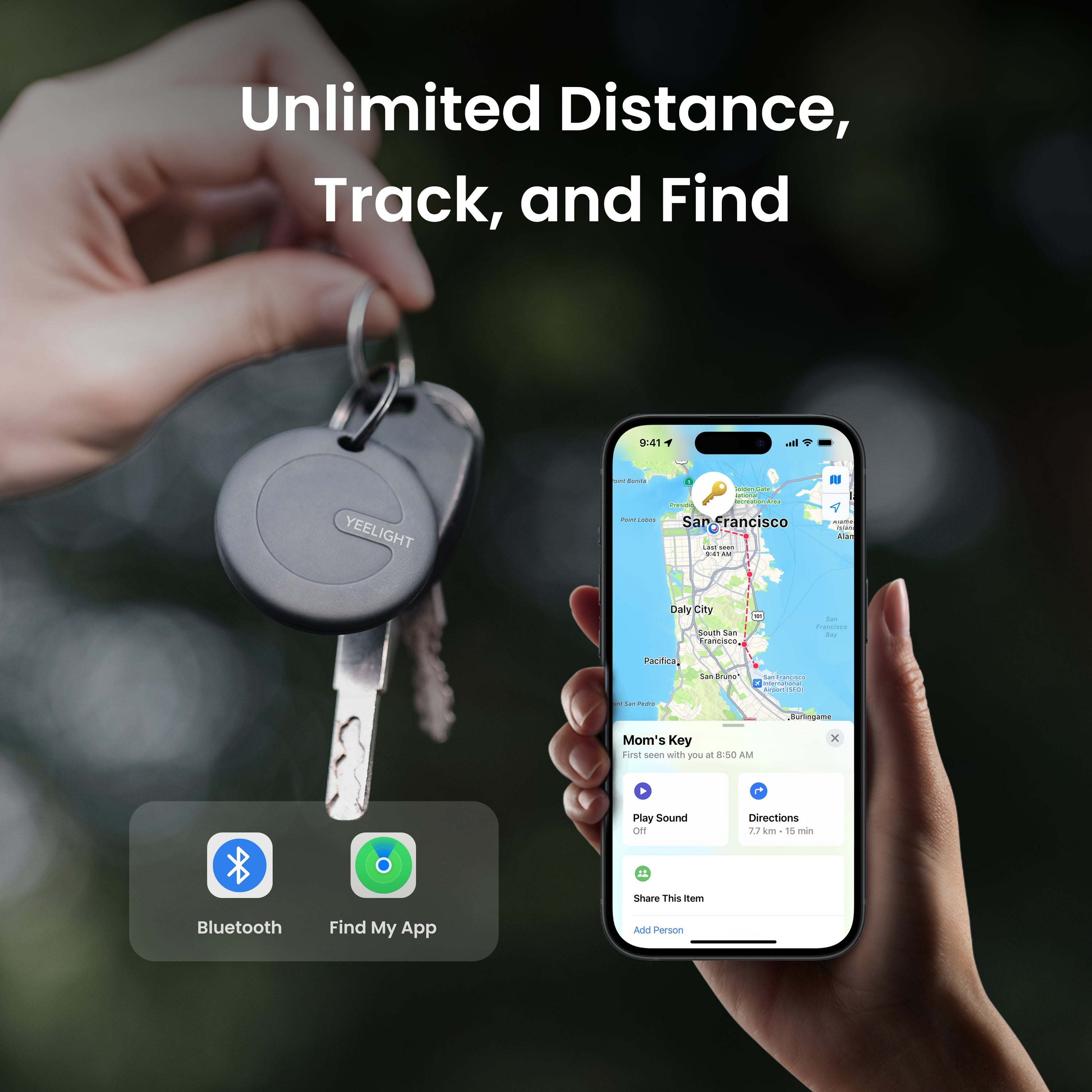
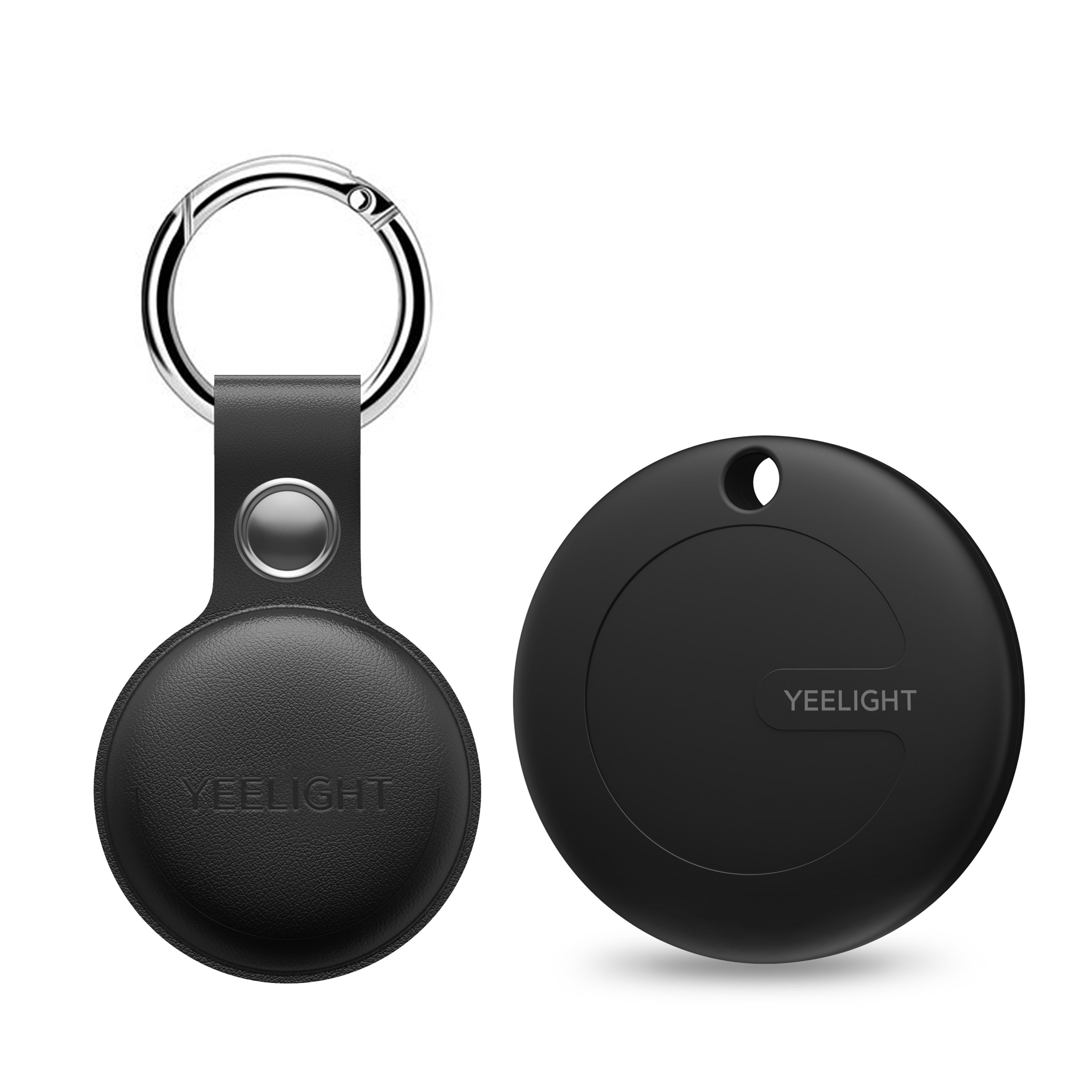
While Govee handles the visual immersion, a true smart theater requires seamless organization. Finding remote controls or adjustment tools in a dark, immersive room can break the magic. This is where the Lumitag Smart Tracker becomes an essential attribute of your setup.

The Lumitag features a 100 dB Speaker (Attribute) which allows for easy finding even under sofa cushions (Benefit). Unlike standard trackers, it offers Unlimited Distance Tracking via the Apple Find My network, ensuring that even if you take a remote to the kitchen or another room, it’s never truly lost.
📺 Related Video: Lumitag Smart Tracker setup and sound test
Integrating these smart accessories ensures that your movie night isn't paused by a ten-minute search for the volume controller.
6. Troubleshooting Common Sync Delays
Latency refers to the time delay between the image appearing on the TV and the lights reacting on the wall.
If you notice a lag, check your Wi-Fi frequency. Govee devices require a dedicated 2.4GHz network. 5GHz networks, while faster, have shorter range and poorer wall penetration, which can cause signal drops for devices mounted behind a TV. Additionally, enable "Game Mode" in the Govee app if available, as this prioritizes processing speed over smooth transitions.

7. Conclusion
Syncing Govee lights with your TV is more than a tech demo; it is a fundamental upgrade to your home entertainment architecture. By properly calibrating the Envisual camera, managing white balance, and integrating smart accessories like the Lumitag, you create an environment that pulls you deeper into the story.
Ready to upgrade your setup? Check out the Lumitag Smart Tracker to keep your theater organized, and start calibrating your lights for the ultimate movie night.